
Photo to 3D Model in FreeCAD: Mesh to Solid
FreeCAD is a free, open-source way to design parts around a scanned-looking object: a stand that cradles a figurine, a case for a gadget, a replacement part next to the original. This guide brings a model made from a photo into FreeCAD, cleans and slims the mesh, and turns it into a solid you can cut and combine.
Try it with your own photo
Free preview, no account. Pay €1 only for the model you keep: OBJ, STL and GLB in one download.
Or open an example model
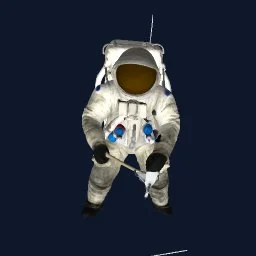
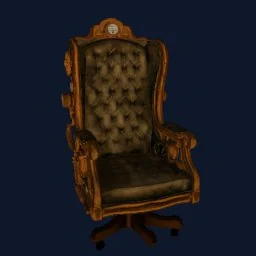


The short version
- Unzip your OBJify download and find
model_3dprint_150mm.stl. - File → Import the STL; it opens in the Mesh workbench at 150 mm.
- Meshes → Decimation to a few thousand triangles.
- Part workbench: Part → Create shape from mesh, then Part → Convert to solid.
- Use Part → Boolean to cut, join and fit it against your own design.
Which file to use
Use the STL. It is the cleaned, watertight version of the model, in millimetres, so FreeCAD reads it at its 150 mm size without any scaling. The OBJ and GLB carry colour, which FreeCAD doesn't use.
| File in the ZIP | What it is | Use it for |
|---|---|---|
model.glb |
Mesh, colour texture and material in one file. Y-up, about 1 m on its longest side. | Blender, Unreal, Unity (with glTFast), websites, AR |
model.obj + material.mtl + texture image |
Textured mesh, about 1 unit on its longest side, stored Z-up. Keep the three files in the same folder. | Unity, Maya, Cinema 4D, any 3D tool |
model_3dprint_150mm.stl |
Watertight solid, no colour, in millimetres: 150 mm on its longest side, standing on Z = 0. | Slicers, Fusion 360, FreeCAD |
Models are around 55,000–60,000 triangles with a single colour texture (no normal or roughness maps). Files are deleted from our servers after an hour, so keep the ZIP.
1. Import and check the mesh
- Create a new document, then File → Import and choose
model_3dprint_150mm.stl. - Switch to the Mesh workbench.
- Optional: Meshes → Analyze → Evaluate and repair mesh confirms there are no holes or flipped faces. The STL is already watertight, so it should come back clean.
2. Decimate before converting
This step matters more than any other. When FreeCAD turns a mesh into a solid, every triangle becomes a face. Tens of thousands of faces make the file heavy and booleans painfully slow.
- Select the mesh and choose Meshes → Decimation.
- Set the reduction high (for example 90%) and apply. Check the shape from a few angles.
- A few thousand triangles is a good target for most objects. Undo and use a lower reduction if fine details matter to your design.
3. Turn the mesh into a solid
- Switch to the Part workbench.
- Select the decimated mesh and choose Part → Create shape from mesh. Keep the default sewing tolerance (0.1) and click OK. This creates a shell.
- Select the new shape and choose Part → Convert to solid.
- Hide or delete the original mesh and shell so you only work with the solid.
The solid is made of many small flat faces. That's expected for an organic shape: it is ideal for cutting and joining, not for editing like a sketch-based part.
4. Design around it
- A pocket that fits exactly: make your stand or holder (a Part box, or a PartDesign body), place the model where it should sit, select the stand first and the model second, then Part → Boolean → Cut.
- Reference from PartDesign: inside a Body, use a ShapeBinder to bring in the model, then sketch on planes that pass through it.
- Cut it in half for printing: Part → Split → Slice apart with a plane, or Part → Boolean → Cut with a large box.
Export the parts you want to print with File → Export as STL or 3MF, and slice them as shown in the image to STL guide.
Good to know
- The back of the object wasn't in the photo, so treat its exact shape as approximate.
- If you only need the model as a visual reference, skip the conversion: keep it as a mesh and sketch around it. That is the fastest option.
- Using Fusion 360 instead? See the Fusion 360 guide.
Frequently asked questions
Which file should I open in FreeCAD?+
The STL (model_3dprint_150mm.stl). It is watertight, in millimetres, 150 mm on its longest side and stands on the XY plane. FreeCAD works in millimetres, so it comes in at the right size with no scaling.
How do I convert an STL mesh to a solid in FreeCAD?+
Decimate the mesh first in the Mesh workbench, then switch to the Part workbench and use Part, Create shape from mesh, followed by Part, Convert to solid. The result is a solid you can use in Part booleans.
Why is FreeCAD so slow after converting the mesh?+
Every triangle becomes a face of the solid. Converting a 50,000-triangle mesh gives a 50,000-face solid, which is slow to display and to use in booleans. Decimate the mesh to a few thousand triangles before converting.
Can I use the converted model in PartDesign?+
Use it in the Part workbench for booleans such as Cut and Fusion. To reference it from a PartDesign Body, bring it in with a ShapeBinder. Its faceted surfaces are fine to cut with but are not meant to be edited like sketch-based features.
Does FreeCAD keep the colours of the model?+
No. FreeCAD works with geometry, and the STL has no colour. That is normal for CAD work: you design around the shape, then print or render it elsewhere.
Try it with your own photo
Free preview, no account. Pay €1 only for the model you keep: OBJ, STL and GLB in one download.
Or open an example model