Image to STL: Turn One Photo into a 3D Print
You have a photo of something you'd like to hold: a figurine, a toy, a vase, a part you want to copy. This guide turns that photo into an STL file your slicer can print, in about a minute of generation time, then walks you through slicing it in Bambu Studio.
Try it with your own photo
Free preview, no account. Pay €1 only for the model you keep: OBJ, STL and GLB in one download.
Or open an example model
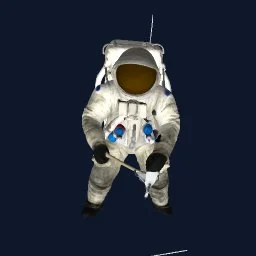
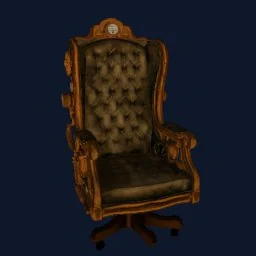
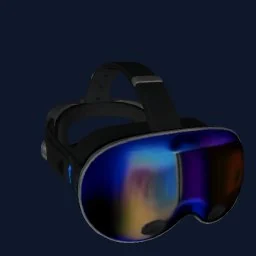
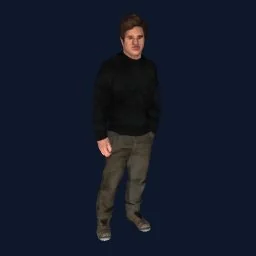
It works the same for PNG, JPG and WebP photos. You can preview the result in 360° for free and pay €1 only if you download it.
The short version
- Take or pick a sharp photo of one solid object, fully in frame, seen from slightly above.
- Upload it on OBJify (no account needed) and check the automatic cutout.
- Wait about 55 seconds, then spin the free 360° preview and look at the back.
- Download for €1: you get a watertight
.STL, plus.OBJand.GLB. - Open the STL in Bambu Studio, PrusaSlicer or Cura, set the size and supports, slice and print.
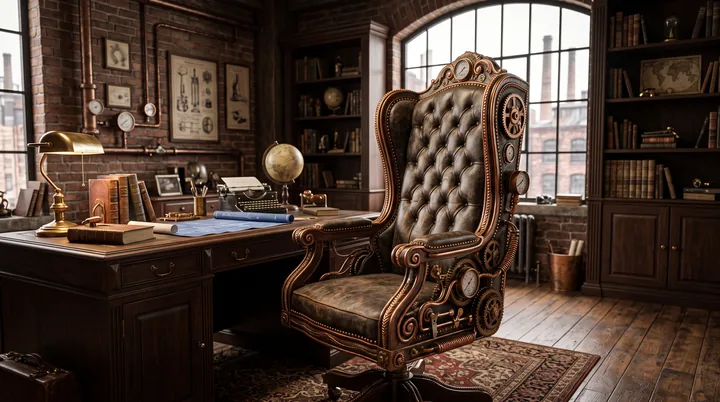
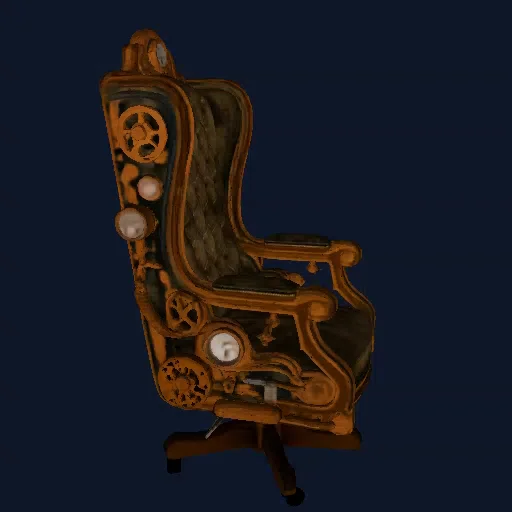
Photo to 3D model, not a flat cut-out
There are two very different things people mean by "image to STL". Some tools trace a logo or drawing and push it up into a flat, raised shape, or turn a photo into a lithophane. OBJify does the other thing: it looks at the object in your photo and rebuilds its full 3D shape, including the sides and back you can't see, so you can print it as a real figure you can turn in your hand.
If you want a flat sign, a cookie cutter or a lithophane, a 2D-extrude or lithophane tool is the better choice. If you want a small statue of the thing in the photo, keep reading.
1. Pick a photo that prints well
The model can only be as good as the photo. A few seconds spent choosing the right one saves a wasted print.
- One object. A single figurine, toy, shoe or vase works best. A group photo or a full shelf does not.
- The whole object in frame. Cropped feet or a cut-off handle stay missing in the model.
- Slightly from above. A 15° to 30° camera angle shows the top and the front at once, which gives the model more to work with than a straight-on shot.
- Even light, sharp focus. Avoid hard shadows, motion blur and strong reflections.
- Any background. The background is removed automatically, so you don't need a photo studio. A plain background still helps with busy scenes.
- Solid things print best. Glass, very thin wires and see-through parts are hard to rebuild from a single photo.
Before generating, OBJify runs a quick check on sharpness, contrast and framing and warns you if the photo is likely to give a poor result.
PNG to STL, JPG to STL and WebP
All three work the same way, up to 25 MB per photo. The file type matters much less than the picture itself:
- JPG to STL: phone photos are JPG (or HEIC, which most phones can export as JPG). Upload the original, not a copy that was shrunk by a messaging app.
- PNG to STL: fine as long as it's a real photo or a realistic render of an object. A PNG of a flat logo or clip-art won't turn into a good 3D figure (see above).
- WebP: images saved from websites are often WebP. They work too, but they are often small, so look for the largest version.
2. Generate the model and check it for free
Open OBJify and drop in your photo. There's no account to create: you get a private guest session straight away.
- Check the cutout. You'll see your object isolated on a clean background. If part of it is missing, try a different photo before going further.
- Generate. The 3D model is ready in about 55 seconds.
- Spin the 360° preview. Look at the back and the underside in particular. Those parts weren't in the photo, so this is where you decide if the model is good enough to print.
All of this is free. If you don't like the result, try another photo and it costs you nothing.
3. Download the STL
Downloading costs one credit: €1 for a single model, or as little as €0.40 per model in packs. Credits never expire and there's no subscription. Click Download and you get one ZIP file with everything in it:
Watertight, pre-scaled to 150 mm. This is the file for your slicer: model_3dprint_150mm.stl.
With the colour texture, for Blender or as a painting reference.
One file for web, AR and game engines.
Save the files to your computer right away. For privacy, OBJify doesn't keep your photos or models: they are deleted automatically after processing.
4. Slice it in Bambu Studio
The STL opens in any slicer. Here's the route in Bambu Studio; OrcaSlicer, QIDI Studio, PrusaSlicer and Cura have the same steps under similar names.
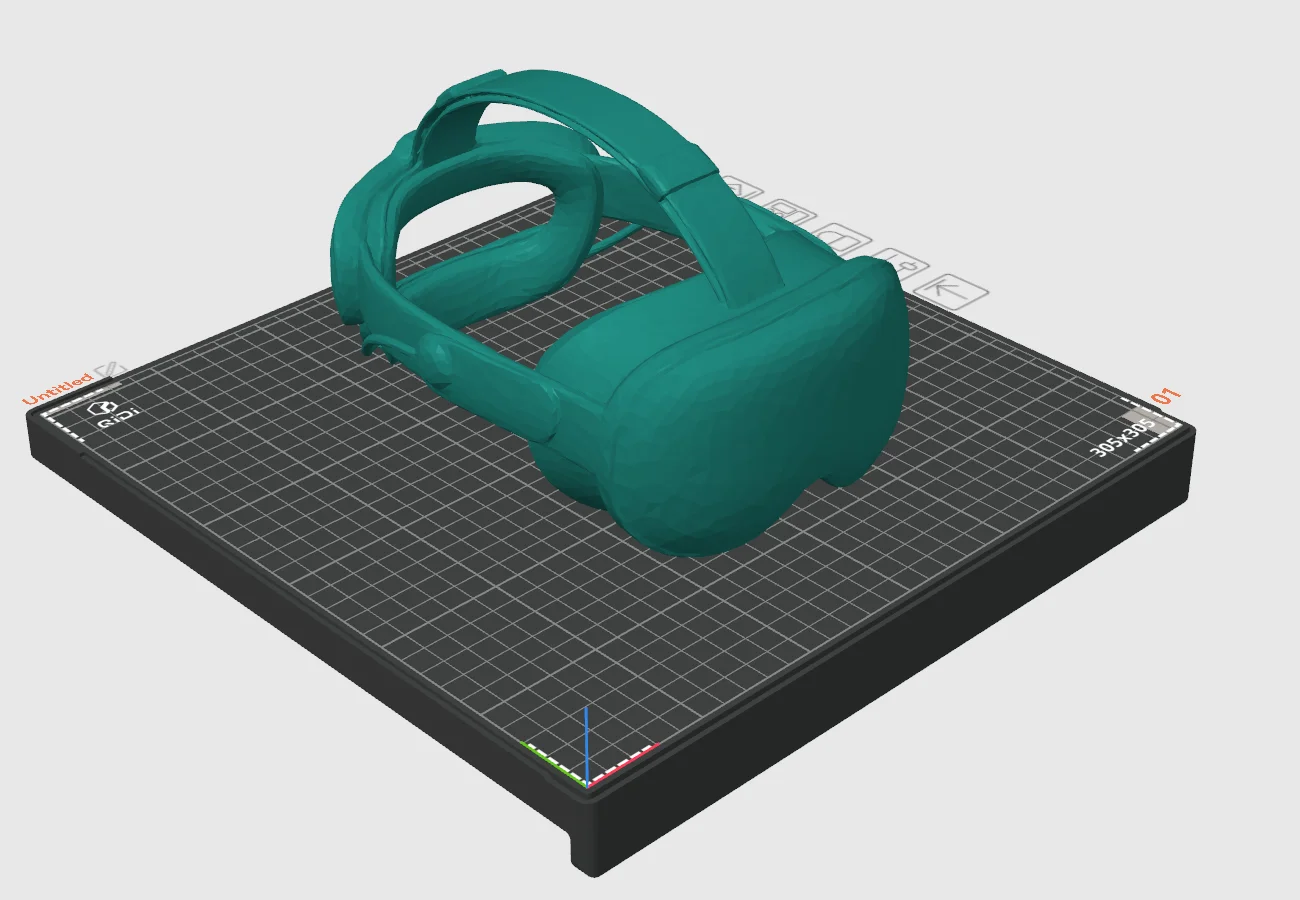
- Import. Drag the
.stlfile onto the build plate, or use File → Import. - Set the size. The model arrives at 150 mm. Select it and use the Scale tool to type the height you want, with the proportions locked.
- Put it flat on the plate. Use Lay on face and click the flattest side (usually the base), or try Auto orient.
- Turn on supports. Figures almost always have overhangs: arms, chins, chair seats. Enable supports and choose tree supports, which are easier to remove from curved shapes.
- Choose the quality. A finer layer height (around 0.12 mm) shows more detail on small figures; the standard 0.2 mm is fine for larger prints.
- Slice and check the preview. Scroll through the layers to make sure nothing starts in mid-air, then send it to the printer.
Tips for a clean first print
- Watch the thin parts. When you shrink a model, antennas, fingers and handles shrink too. A standard 0.4 mm nozzle struggles with anything thinner than about 1 mm, so print small models a bit larger or accept that tiny details will soften.
- Use a resin printer for very small figures. Below about 5 cm, resin keeps far more of the detail than FDM.
- The STL has no colour. STL files only hold shape. Print in one colour and paint it, using the textured
.OBJas your colour reference. - Add a base if it wobbles. If the model only touches the plate at a few points, add a brim, or place it on a simple disc in your slicer.
OBJify or MakerWorld's image to 3D?
If you print on a Bambu Lab machine, you may have seen the image-to-3D tool in MakerWorld's MakerLab. It lives inside your Bambu Lab account, which is handy if you already do everything in that ecosystem.
OBJify is the better fit when you want to start without an account, see the full model before paying anything, and keep standard files that open in any slicer or 3D app: STL for printing, OBJ for editing and GLB for the web. Both are worth trying with the same photo; the free preview makes the comparison easy.
Frequently asked questions
Can I convert a PNG or JPG to STL?+
Yes. OBJify accepts PNG, JPG and WebP photos up to 25 MB and turns the object in the photo into a full 3D model with a watertight STL. The file format matters far less than the photo itself: use the original, sharpest version you have.
Is converting an image to STL free?+
Generating the model and checking it in the 360° preview is free. You pay €1 only when you download a model you are happy with (as low as €0.40 per model in credit packs). There is no subscription and no sign-up.
What size is the STL file when I open it in my slicer?+
The STL is pre-scaled to 150 mm, so it lands on the build plate at a printable size. Scale it up or down in Bambu Studio, PrusaSlicer or Cura before slicing.
Will the STL print without repairs?+
The STL is a watertight, manifold mesh, so slicers can read it without a repair step. You still choose orientation and supports like with any model, and very thin parts may need the model printed larger.
Can I turn a logo or drawing into an STL?+
OBJify is built for photos of real, solid objects and reconstructs their full 3D shape. For a flat logo, sign or lithophane, use a 2D-extrude or lithophane tool instead.
Can I sell prints made from the STL?+
Yes. Every download comes with commercial rights to the generated 3D model. Make sure you have the rights to the object or design in the photo you upload.
Try it with your own photo
Free preview, no account. Pay €1 only for the model you keep: OBJ, STL and GLB in one download.
Or open an example model