
Show a 3D Model on Your Website and in AR
A 3D model that shoppers or visitors can spin, zoom and even place in their own room makes a product page far more convincing than another photo. With a GLB file and a few lines of HTML you can do it on any website, with no app and no 3D experience.
Try it with your own photo
Free preview, no account. Pay €1 only for the model you keep: OBJ, STL and GLB in one download.
Or open an example model
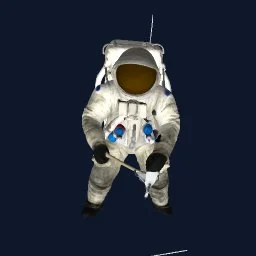



The file you need
Use model.glb from your OBJify download. GLB is the web's standard 3D format: mesh, texture and material in one file that every browser-based viewer understands.
| File in the ZIP | What it is | Use it for |
|---|---|---|
model.glb |
Mesh, colour texture and material in one file. Y-up, about 1 m on its longest side. | Blender, Unreal, Unity (with glTFast), websites, AR |
model.obj + material.mtl + texture image |
Textured mesh, about 1 unit on its longest side, stored Z-up. Keep the three files in the same folder. | Unity, Maya, Cinema 4D, any 3D tool |
model_3dprint_150mm.stl |
Watertight solid, no colour, in millimetres: 150 mm on its longest side, standing on Z = 0. | Slicers, Fusion 360, FreeCAD |
Models are around 55,000–60,000 triangles with a single colour texture (no normal or roughness maps). Files are deleted from our servers after an hour, so keep the ZIP.
1. Set the real size (important for AR)
In the browser, size doesn't matter. In AR it does: the model appears in the room at its true size in metres. Because a single photo doesn't reveal how big something is, the GLB comes at about 1 m on its longest side, so a coffee mug would show up as big as a chair.
Fix it once in Blender: import the GLB, type the real height into Dimensions, apply the scale and export glTF 2.0 again. The Blender guide walks through it.
2. Add it to your page
Upload the GLB to your site, then paste this where the model should appear. It uses model-viewer, a free, open-source web component made by Google.
<script type="module"
  src="https://ajax.googleapis.com/ajax/libs/model-viewer/4.0.0/model-viewer.min.js"></script>

<model-viewer
  src="/models/product.glb"
  poster="/models/product.webp"
  alt="Describe the object for screen readers"
  camera-controls
  auto-rotate
  ar
  shadow-intensity="1"
  style="width: 100%; height: 480px;">
</model-viewer>camera-controlslets visitors rotate and zoom.auto-rotateturns the model slowly until someone touches it.postershows an image while the model loads. A screenshot of the model works well.altdescribes the model for screen readers and search engines.
3. Turn on "view in your room"
The ar attribute in the snippet above is all it takes. On a supported phone, model-viewer shows an AR button:
- Android: opens the GLB in AR through Google's Scene Viewer or WebXR.
- iPhone and iPad: model-viewer converts the GLB on the fly for Apple's AR Quick Look, so you don't need a separate USDZ file.
- Desktop: the button stays hidden and the model simply rotates on the page.
Test on a real phone after uploading, and check that the size looks right next to real furniture.
4. Make it load faster
GLB files from OBJify are typically a few megabytes. That's fine for a product page, but you can make them much smaller with the free glTF Transform tool (requires Node.js):
npx @gltf-transform/cli optimize model.glb product.glb --compress draco --texture-compress webpmodel-viewer decodes Draco-compressed files without extra setup. Look at the result before publishing: very strong compression can soften fine details.
Shopify, WordPress and other platforms
- Shopify: upload the GLB as product media, next to your photos. Shopify shows it in its 3D viewer on the product page.
- WordPress, Webflow, Squarespace and others: paste the snippet into a custom HTML or code block, with the GLB uploaded to your media library or file storage.
- Your own server: serve
.glbfiles with the content typemodel/gltf-binary. If the file is on another domain or CDN, that server must allow cross-origin requests (CORS).
Tips for product pages
- Photograph the product from slightly above, in soft even light. The photo tips apply to web models too.
- Check the back of the model in OBJify's free 360° preview before you pay. It is reconstructed from a single photo, so it's the part most worth a look.
- Keep the 3D viewer next to, not instead of, your photos: shoppers still want the real pictures.
Frequently asked questions
How do I show a 3D model on my website?+
Upload the GLB file next to your page and add Google's free model-viewer web component: one script tag and one model-viewer tag with the file as its src. Visitors can rotate and zoom the model in any modern browser.
Does it work in AR on iPhone and Android?+
Yes. Add the ar attribute and model-viewer shows a View in your space button on supported phones. Android opens the GLB in Scene Viewer or WebXR, and on iPhone and iPad model-viewer converts the GLB for Quick Look automatically.
Why is my model the wrong size in AR?+
AR shows the model at its real size in metres. A photo does not reveal real-world size, so the GLB comes at about 1 metre on its longest side. Scale it to the true size in Blender and export the GLB again before using AR.
How big is the GLB file, and can I make it smaller?+
Our GLB files are typically a few megabytes. The free glTF Transform command-line tool can shrink them a lot with Draco mesh compression and WebP textures, and model-viewer reads compressed files without extra setup.
Can I use the GLB on Shopify?+
Yes. Shopify accepts GLB files as product media alongside photos and videos, and shows them in a 3D viewer on the product page. Set the real-world size first so AR looks right.
Try it with your own photo
Free preview, no account. Pay €1 only for the model you keep: OBJ, STL and GLB in one download.
Or open an example model