
PNG to STL Converter: Turn a PNG into a 3D Print for Free
To convert PNG to STL for free, drop the image into the PNG to STL converter below: it turns a logo, text or drawing into a raised 3D shape, or a picture into a lithophane, right in your browser. Have a photo of a real object instead, like a toy or a figurine? Upload it to the photo box below and OBJify rebuilds it as a full 3D model you can print.
Free PNG to STL converter
Runs in your browser: your image is never uploaded. No sign-up, no limits.
Try it with your own photo
Free preview, no account. Pay €1 only for the model you keep: OBJ, STL and GLB in one download.
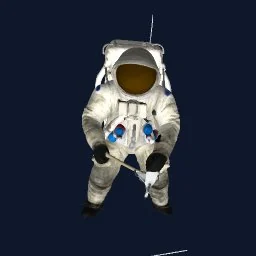
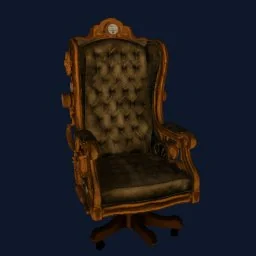
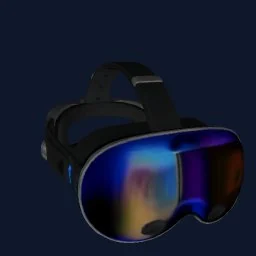
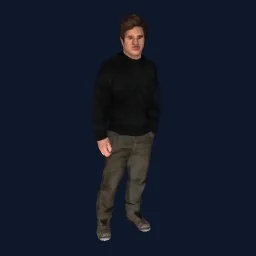
Or open an example model
Which kind of STL do you want?
| Raised shape | Lithophane | Full 3D model | |
|---|---|---|---|
| Start from | A logo, text or line drawing | Any picture or photo | A photo of one real object |
| You get | The shape standing up from a flat base | A thin panel that shows the picture when lit from behind | The object in 3D, all the way round |
| Best for | Signs, keychains, name tags, cookie stamps | Gifts, night lights, window panels | Figurines, replicas, toys, props |
| Tool | The converter above (free) | The converter above (free) | OBJify (free preview) |
Turn a logo or drawing into a raised STL
- Use a PNG with a transparent background if you have one: everything you can see is raised, the see-through part stays flat. A black logo on white works too.
- Drop it into the converter and keep A raised shape. Set the width in millimetres, how far the shape stands up (Raise) and the thickness of the plate under it (Base).
- Check the preview: lighter means taller. If the wrong part is raised, tick Invert.
- Click Download STL and open it in Bambu Studio, OrcaSlicer, PrusaSlicer or Cura.
For a two-colour sign on a single-nozzle printer, add a colour change in the slicer at the layer where the raised part begins: drag the layer slider to that height and click the plus sign.
Make a lithophane from a PNG or JPG
- Pick a photo with clear contrast. Faces and pets work well; very dark photos come out as a thick, dull panel.
- In the converter choose A relief or lithophane. The defaults (0.8 mm base, 2.2 mm depth) give a 0.8 to 3 mm panel, a good range for lithophanes.
- Print it standing up, in white PLA with 100% infill, so the thickness alone decides how much light comes through.
- Hold it against a window or a lamp to see the picture.
Turn a photo into a full 3D model
A PNG to STL converter only pushes the picture up, so a photo of a figurine becomes a flat panel with bumps, not a figurine. To get the object itself, OBJify rebuilds its full 3D shape from one photo, including the back and sides the camera never saw, in about a minute. The download includes a watertight STL, set to millimetres and ready for the slicer.
The image to STL guide shows which photos work best and how to print the result.
Other free ways to turn an image into an STL
- Inkscape, then your slicer or Tinkercad. In Inkscape use Path → Trace Bitmap to turn the PNG into an SVG, then import the SVG into Tinkercad, or add it as a part in recent versions of PrusaSlicer and Bambu Studio, and set its height. The edges come out perfectly smooth, which is best for small logos.
- Blender. Add a plane, subdivide it, and add a Displace modifier that uses the image as its texture. Export with File → Export → STL. This gives you full control, but takes longer to set up. See the Blender guide.
Three things that go wrong
- The whole rectangle is raised. A dark or coloured background counts as part of the shape. Tick Invert, or remove the background so the PNG is transparent.
- Jagged edges. A small image gives a blocky STL. Use the largest version of the image, or trace it into an SVG.
- Fine lines disappear. Lines thinner than the nozzle (usually 0.4 mm) can't print. Make the model wider, or thicken the lines in the image first.
Need to go the other way? See STL to PNG or JPG. Already have a 3D model as an OBJ? Use the free OBJ to STL converter.
Frequently asked questions
Can you convert a PNG to STL?+
Yes. A flat PNG, like a logo, text or a drawing, becomes a raised 3D shape or a lithophane: the converter on this page does it in your browser. A photo of a real object, like a toy or a figurine, can become a full 3D model with OBJify.
How do I convert PNG to STL for free?+
Drop the PNG into the converter at the top of this page, choose a raised shape or a relief, set the width in millimetres and click Download STL. It is free, needs no account, and the image never leaves your device.
Can I convert a JPG to STL too?+
Yes, the converter takes PNG, JPG and WebP. For logos and shapes a PNG with a transparent background works best, because the see-through part stays flat and everything else is raised.
How do I make a lithophane from a PNG?+
Choose "A relief or lithophane" in the converter, so darker parts become thicker. Print it standing up in white PLA with 100% infill, then hold it against a light to see the picture.
Can a photo become a real 3D model, not just a raised picture?+
Yes, but not with a simple converter, which only pushes the picture up. OBJify rebuilds the full 3D shape of the object in a photo, including its back and sides, and gives you a watertight STL to print.
Why does my whole image come out as a raised rectangle?+
The image has no transparency and its background is dark, so it counts as part of the shape. Tick Invert, or save the logo as a PNG with a transparent background and convert it again.
Why are the edges of my STL jagged?+
The STL can only be as sharp as the image. Start from the largest version you have, or trace the logo into an SVG in Inkscape and import the SVG into your slicer for perfectly smooth edges.
Try it with your own photo
Free preview, no account. Pay €1 only for the model you keep: OBJ, STL and GLB in one download.
Or open an example model